Test notification delivery
Configure a destination and confirm one real test message arrives.
LogForge · Runs in your infrastructure
Before you begin
- Where: LogForge in your browser; no host shell needed.
- Access: permission to manage your destinations. Owner or authorized Admin configures shared providers.
- Ready: an approved receiving service and its private connection details.
A destination is where messages arrive. A delivery provider supplies shared sending settings, such as SMTP for email. Configure both in LogForge; your website account does not configure alert delivery.
Choose and prepare a delivery service
Open Notifications.
- Email: choose Configure delivery where required. Use your provider's SMTP host, port, secure mode, sender, and any username/password. An email destination alone does not configure SMTP.
- Discord walkthrough: obtain an approved channel webhook privately. It needs no shared provider setup.
Keep credentials private: a webhook URL allows posting to its channel. Put credentials in the protected form, outside screenshots, tickets, and
operator.env.
Add a destination
- Choose Add destination.
- Select Destination type: Discord for this example.
- Enter a Display name, such as
Operator test channel. - Paste your real Discord webhook URL.
- Choose Add destination.
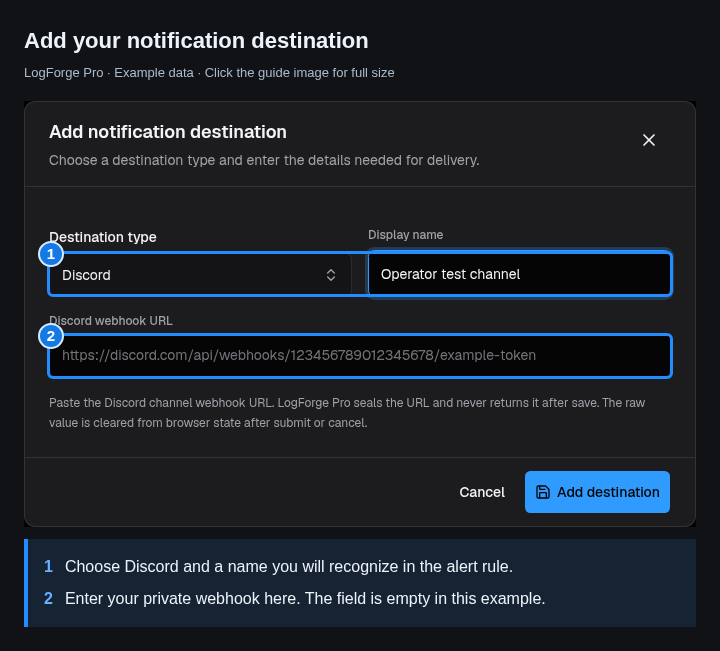
Choose Discord, name the destination, then enter your own private webhook. Click an image to open it full size.
Check: the receiving value is masked and the destination is enabled. Use Enable destination and confirm if needed. Other providers use their corresponding fields.
Send and verify one test
- Choose Test on the destination's row.
- Review the confirmation and choose Send test. This sends a real message.
- Check LogForge's delivery result and the receiving channel.
- Wait for delivery, then check that the destination shows Verified. Refresh the list if needed.
- Optionally choose Make default in destination actions. This replaces your personal default, including your coverage for team-targeted alerts.
Check: the test arrives and LogForge reports delivery. Saved, queued, or retrying states do not prove receipt.
If delivery fails
Problem: the test is blocked, fails, or keeps retrying.
Why it matters: a rule can fire without its notification reaching you.
Next step: read the reason. Check destination enablement, provider configuration, outbound connectivity, and the receiving service. For a rule notification, open Alerts in the top navigation, select the Alerts tab, and open the event. Check Notifications and expand Delivery details. Exclude webhook URLs/passwords from support messages.
Continue or clean up
Continue with Your first alert. That walkthrough separately checks rule evaluation and delivery.
Keep useful destinations. To remove a temporary one, pause its test rule, remove the rule's destination reference, then use Delete destination. Masked historical delivery evidence remains.