Create your first alert
Test a sample rule, enable its notification and verify the outcome.
LogForge · Runs in your infrastructure
Before you begin
- Complete your first workload and notification test.
- Sign in to LogForge as Owner, or with permission to manage rules and view the workload.
- Keep
logforge-docs-first-workloadrunning and monitored. Confirm itslogforge first workload readymessages are saved.
All rule steps happen in the browser. Sample-container commands run on its Docker host.
This exercise sends notifications. Add only a notification action. Leave restart, stop, kill, and custom-script actions out.
Create a rule for the sample
- Open Alerts > Rules > New rule.
- Name it
First workload notification; select Warning urgency. - Under What should trigger?, choose Type: Keyword in logs and enter:
| Field | Value |
|---|---|
| Time window (seconds) | 60 |
| Keyword | logforge first workload ready |
| Count | 3 |
| Match mode | Literal |
- Under What should this monitor?, choose the container option in Monitor, then the exact sample container on the intended host. Do not select the whole host.
- Under What should happen?, choose Add action. Set Action to Send notification and Your destination (optional) to
Operator test channel, or your destination's name. Leave Add users or teams empty and Delivery failure behavior at Required. Confirm Add action.
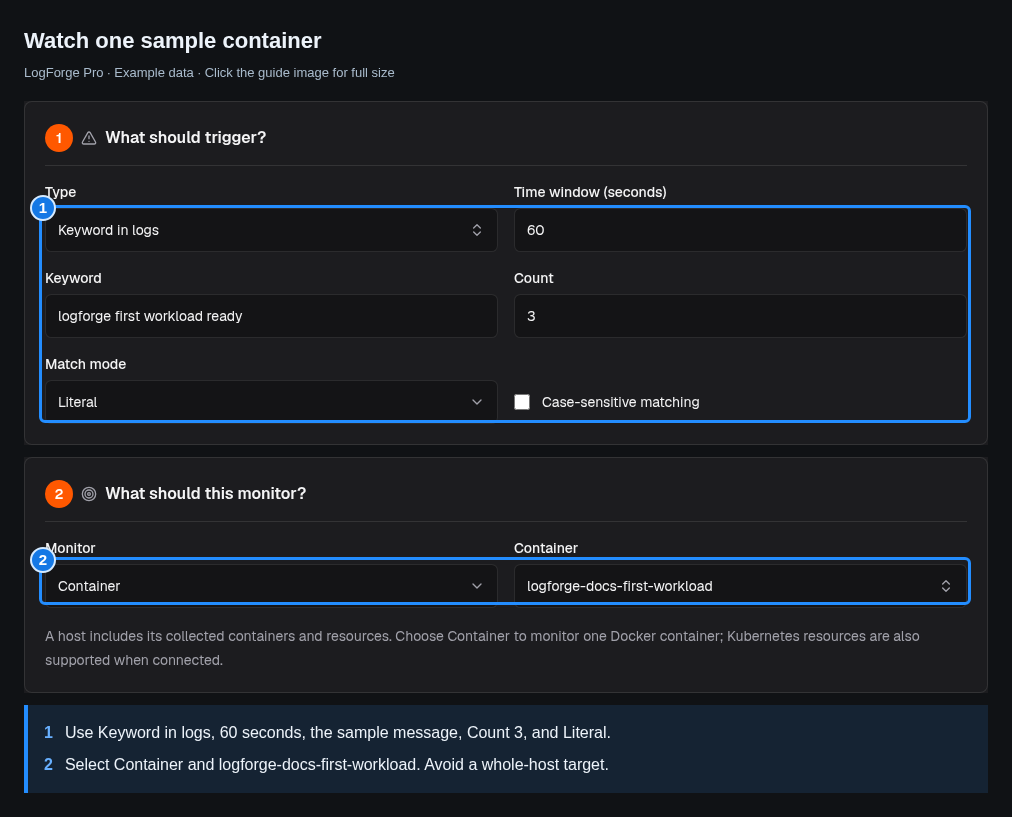
Use these exact sample values. Select the single container, then add only a notification action.
Choose a destination for this exercise. The field says optional because rules can notify other users or teams instead. Leaving every recipient empty does not configure delivery.
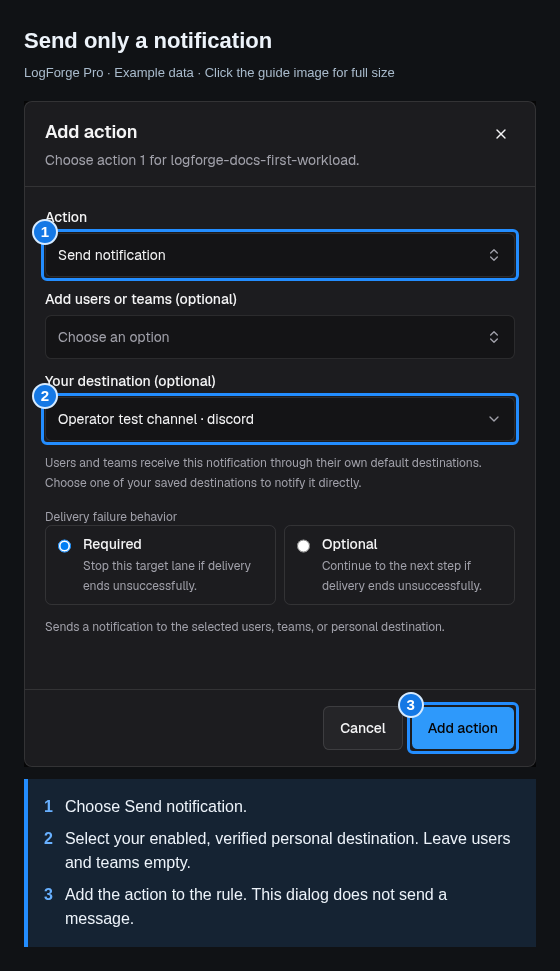
Leave users and teams empty for this personal destination, then choose Add action.
Check: the summary describes three matching sample messages within sixty seconds and one notification action. This is an exercise threshold, not production guidance.
Check the draft against saved data
- Choose Validate rule and resolve blockers.
- Under Test against retained data, use your browser's local time. Set Start after monitoring was applied and before three saved sample messages; set End after those messages. Keep the interval within 24 hours. The default last hour may include time before your sample existed.
- Choose Test retained data.
- Read the outcome, firing episodes, and Coverage and technical reasons.
Expected: a complete test says
would fire. This test sends no notification and runs no response action. Partial, unknown, or blocked results need investigation; a clear result may simply have too few matches.
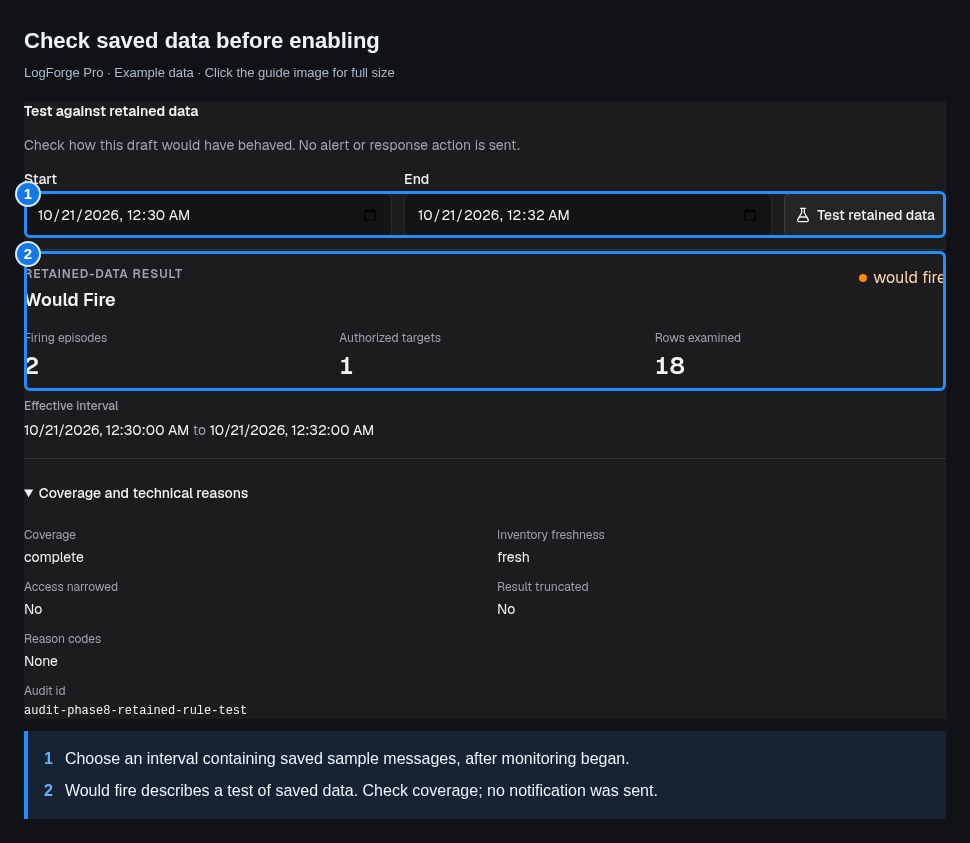
Example result from sample data. Your counts and times will differ; check Coverage and technical reasons as well as the outcome.
Enable and check a new firing
- Choose Create rule. The saved rule is pending.
- Open the saved rule's detail. Choose the play button (Enable rule), then confirm Enable rule. Check that the rule shows Enabled.
- Keep the sample producing new messages.
- Open Alerts in the top navigation, then the Alerts tab. Find the new event for
First workload notificationand open it. - Check Automated response and the delivery status under Notifications. Expand Delivery details for delivery information or Technical details and audit for identifiers and diagnostics. Check the receiving channel too.
Check: the event records a new firing, delivery evidence reports success, and the message arrives. A saved-data result or alert event alone does not prove delivery. Allow for evaluation intervals and delivery retries.
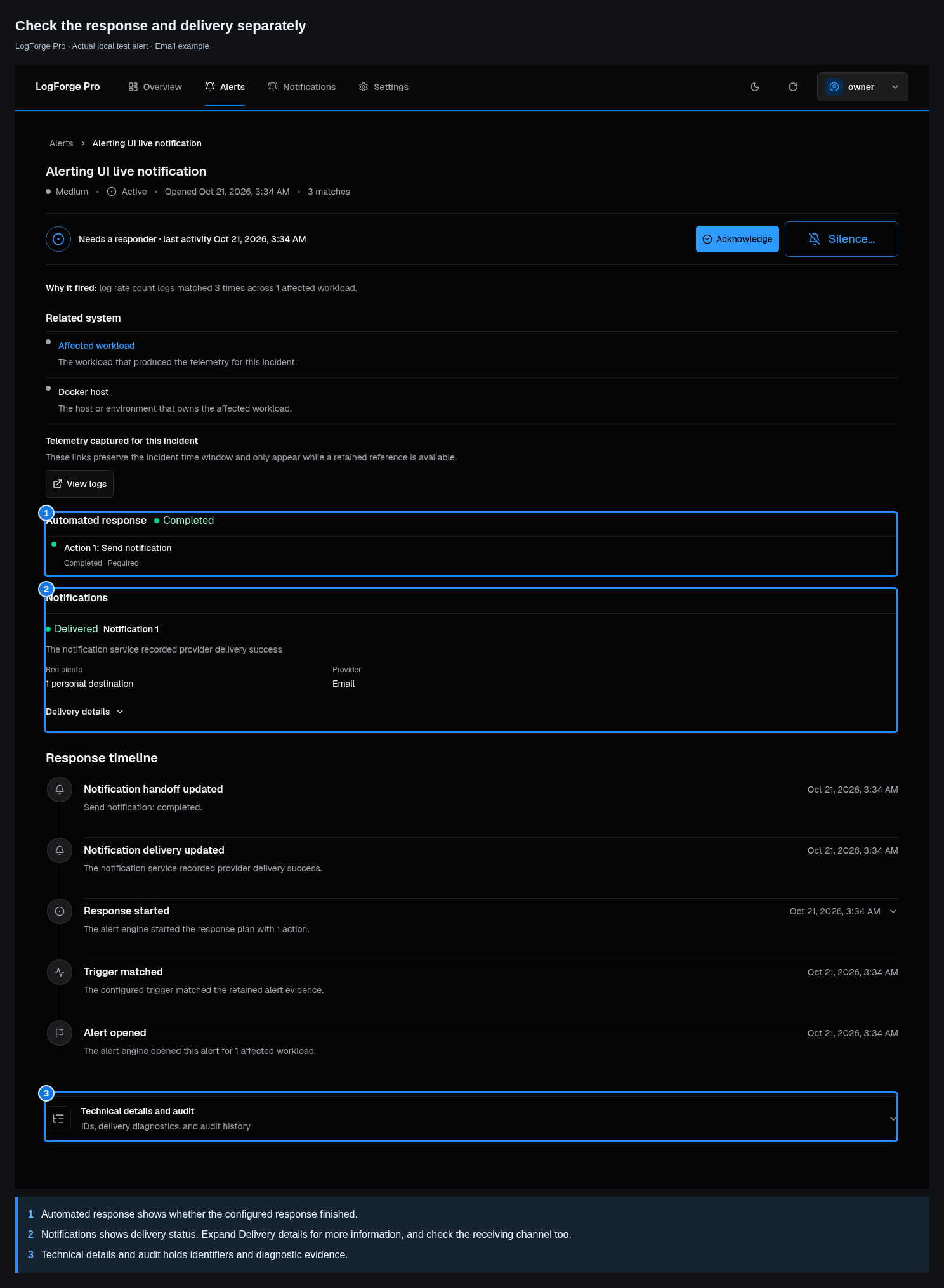
Actual local test alert using email. Your rule name and provider will differ; look for Completed and Delivered, then confirm receipt in your own channel.
Enabling authorizes the configured automatic response. LogForge rechecks permissions and target health before running the response; it does not request another click each time.
Disable and clean up
- Open the rule's detail, choose Pause, enter a reason, confirm Pause rule, and check the rule is no longer enabled.
- Retire it when finished if offered.
- Remove your sample if you created it for this exercise.
- Remove the rule's destination reference before deleting a temporary destination.
Pausing stops new firing cycles, but does not cancel accepted work or erase alert history. Keep existing applications, agent identities, and saved evidence.
If the expected result is missing
Problem: no test match, firing, or delivery.
Why it matters: saved logs, rule evaluation, and delivery are separate checks.
Next step: verify the workload, saved text, monitoring, test interval, enabled revision, and displayed reasons. Use No data or notification troubleshooting. Keep rule, event, request, and audit identifiers for support.