Inspect workload metrics
Read resource use and check when observations were collected.
LogForge · Runs in your infrastructure
Before you begin
- Where: LogForge in your browser; no host shell needed.
- Access: permission for the environment and an agent collecting supported metrics.
- Open: Overview > Hosts, expand the host, select a workload, then Metrics.
Runtime metrics show container activity, such as CPU and memory use. The Remote Agent collects them automatically for supported Docker containers and Kubernetes Pods/containers.
Automatic collection: no application code changes are needed, and log monitoring can remain off.
Read a metric
- Open Metric and choose a recommended metric.
- Set Time range to the period you need.
- Read the latest sample and timestamp.
- Compare the chart with the latest, average, minimum, and maximum values where available.
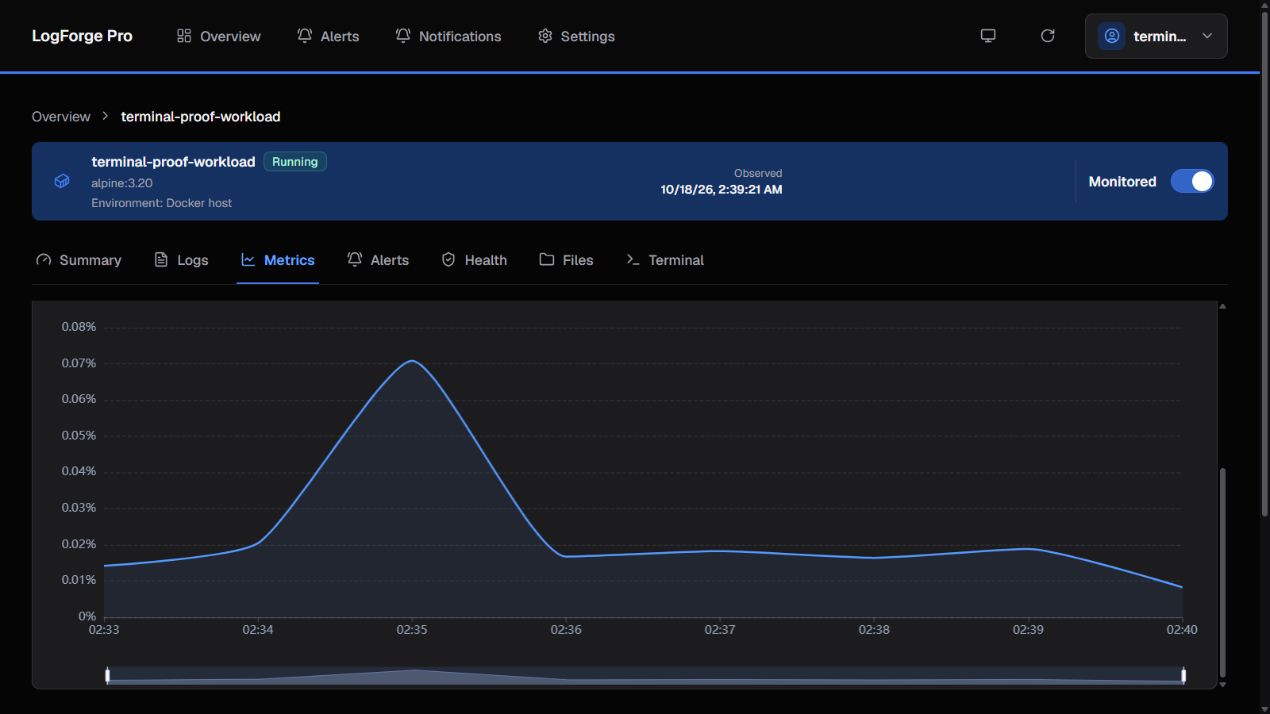
Read the metric name, unit, and sample time together. This example shows CPU usage over time.
Check: recent samples belong to your workload and cover the chosen period. Rates need multiple samples; a new workload can show a waiting state first.
Find another retained metric
Search the Metric picker for exact retained names. Available choices depend on what was collected for this scope and time range.
Host, node, filesystem-volume, and storage-volume metrics are outside the current runtime support line. See Runtime support.
If the chart is empty
- Broaden the time range; use Try last 6 hours when offered.
- Check the latest sample time, agent connectivity, and workload health.
- Read any partial, unavailable, or collection warning.
Missing is not zero. An empty chart can mean no sample is available. Toggling log monitoring does not repair metric collection.
Use No data if it remains empty.
Chart choices do not change collection. To resume, reopen the page and select the metric/time range again. No cleanup or workload restart is needed.