
Networking and certificates
Choose reachable addresses and establish trusted HTTPS.
LogForge · Runs in your infrastructure
Choose the addresses before installation
- Where: the server's Linux host, with your deployment files ready.
- Access: permission to manage DNS, network restrictions, and certificate trust. Use Bash for host checks.
- When: before the first startup.
| Address | Who uses it | Default |
|---|---|---|
| Operator HTTPS | Your browser | https://localhost |
| Remote Agent HTTPS | Agent enrollment and API calls | https://localhost |
| Remote Agent mutual TLS | Agent traffic authenticated with machine certificates | https://localhost:9443 |
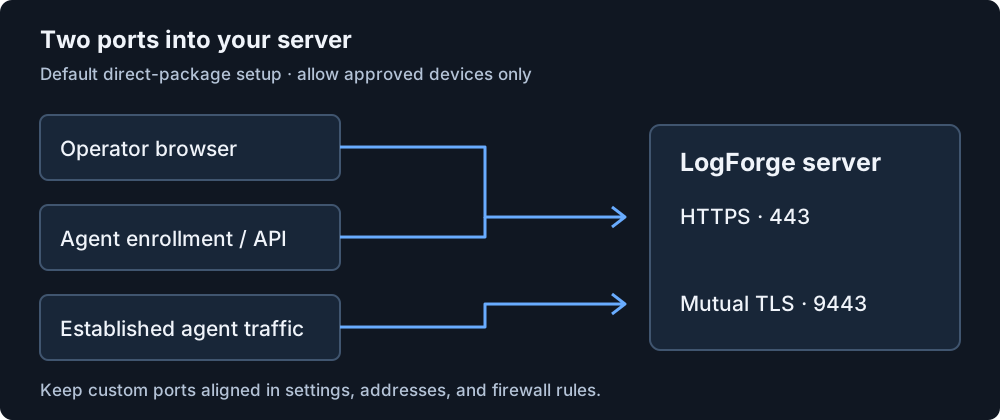
Default direct-package ports. Use your selected ports if customized.
Port rule: operator and Remote Agent HTTPS share the published HTTPS port. Their hostnames can differ when configured before startup. Mutual TLS needs a different port. Another hostname alone does not prevent a host-port collision.
For online installation, edit .env in the clone and align the URLs, explicit ports, and certificate names. For the signed air-gapped package, use operator.env. That package also supports a local browser with a different reachable agent hostname. Reverse proxies need deployment-specific configuration.
Check the network path
- Allow inbound TCP 443 from approved operator devices and agents needing HTTPS. Allow 9443 from intended agent hosts. Substitute custom ports if configured.
- After startup, test DNS and reachability from those actual devices and hosts.
- Confirm a device that should be denied cannot connect.
Before startup: Docker publishes these ports without a host-IP restriction.
localhostis not a firewall. Apply network or Docker-aware host restrictions first.
This Docker Host agents use the LogForge server's private ingress network automatically, through their generated placement artifact.
Keep databases, telemetry stores, certificate-signing services, and other internal containers private. For an online installation, allow the outbound access needed for images and licensing. For an air-gapped installation, use approved image transfer and offline licensing; keep outbound restrictions in place.
Establish browser trust
- After startup, locate the LogForge server's public root certificate:
| Installation | Default certificate location |
|---|---|
| Online installation | data/pki/trust/root_ca.crt inside the clone |
| Signed air-gapped package | $HOME/.local/share/unicron/pki/trust/root_ca.crt |
Use pki/trust/root_ca.crt under your custom data root if configured.
- Have your administrator verify its origin and trust it on each operator machine using your organization's procedure.
- Open the configured HTTPS URL. Its hostname must match a certificate name.
Check: the browser opens the LogForge server without a name or trust error. Never distribute private keys or disable certificate verification.
If an address changes
Preserve existing data and certificates, and obtain a deployment-specific repair plan. A changed address can break startup or agent connections. Editing an agent command does not repair DNS or certificates.
Continue with your installation guide: Install online or Install air-gapped. Each includes its readiness check. For connection failures, use No data.