Update and recover a release
Review a supported update, verify progress and recover an incomplete operation.
LogForge · Runs in your infrastructure
Before you begin
This guide covers releases with the native updater. If you installed through the online repository, first check its installed version and offered update controls. Obtain an approved migration procedure before applying a newer package's helper commands to an older installation.
- Access: sign in to LogForge as the deployment's local Owner.
- Release: use the untouched signed updater payload matching your installed version and CPU. Offline update uploads need a complete approved signed archive. A newly published Docker tag does not establish a supported upgrade from an older release.
- Prepare: backups, free space for the database checkpoint, and an interruption window.
- Preserve: the installation directory, independent public verification file, data root, agent identities, and any original archive supplied with your installation.
The October 28 packages include Linux AMD64 and ARM64 helpers. The server uses its own CPU; each Docker agent uses its host's CPU. You do not select an architecture in the update screen. Publication alone does not qualify every host or Kubernetes combination.
Prepare online server updates once
The public online installer configures this automatically. Use the following manual fallback only for a connected package without install.sh, after its signed initializer has created the generated runtime under DATA. Older repository installations need their own approved migration procedure.
Run in Bash inside the original clone, on a Linux host with Docker administrative access and systemd. Use sudo -s before setting DATA if you are not already running as root. Set DATA to the installation's data directory. Keep vendor-public.jwks.json from the public repository, separate from update payloads.
Run each block only after the previous one succeeds. update-package must not already exist: preserve an existing directory and check your previous setup before retrying. The preparation block stops on a failed command.
For default storage, download the helper matching the installed version and CPU. For custom storage, change DATA first:
DATA="$PWD/data"
(
  set -e
  mkdir update-package
  case "$(uname -m)" in
    x86_64) CPU=amd64 ;;
    aarch64|arm64) CPU=arm64 ;;
    *) echo "Unsupported Linux CPU" >&2; exit 1 ;;
  esac
  VERSION="$(cat "$DATA/product-updates/deployment/VERSION")"
  PACKAGE_IMAGE="docker.io/junaidquraishi/unicron-business:release-$VERSION-$CPU"
  docker pull --platform "linux/$CPU" "$PACKAGE_IMAGE"
  EXPORTER="$(docker create --entrypoint /not-executed "$PACKAGE_IMAGE")"
  docker cp "$EXPORTER:/unicron-release/." ./update-package/
  docker rm "$EXPORTER"
)
Check: the preparation block succeeds. The temporary container is never started; these commands only copy the signed updater files. Leave the extracted files, including operator.env, unchanged.
Register the native update service and download the installed release's complete
signed image inventory in the same preparation block. setup-web verifies the
package, including IMAGE_LOCK, against independent vendor trust before the
inventory is read. The CPU check follows that complete verification.
(
  set -e
  "$PWD/update-package/unicron-update" \
    --data-root "$DATA" \
    --installed-package "$PWD/update-package" \
    --trust "$PWD/vendor-public.jwks.json" setup-web
  "$PWD/update-package/unicron-update" \
    --data-root "$DATA" \
    --installed-package "$PWD/update-package" \
    --trust "$PWD/vendor-public.jwks.json" verify-platform
  case "$(uname -m)" in
    x86_64) SOURCE_PLATFORM=linux/amd64 ;;
    aarch64|arm64) SOURCE_PLATFORM=linux/arm64 ;;
    *) echo "Unsupported Linux CPU" >&2; exit 1 ;;
  esac
  while IFS="$(printf '\t')" read -r IMAGE_KEY IMAGE_REF IMAGE_TAG IMAGE_CONFIG; do
    case "$IMAGE_KEY" in
      *_ARM64_*) IMAGE_PLATFORM=linux/arm64 ;;
      *_AMD64_*) IMAGE_PLATFORM=linux/amd64 ;;
      *) IMAGE_PLATFORM="$SOURCE_PLATFORM" ;;
    esac
    docker pull --platform "$IMAGE_PLATFORM" "$IMAGE_REF"
  done < "$PWD/update-package/IMAGE_LOCK"
)
Continue only after setup and every download succeeds. Keep the extracted package
and its IMAGE_LOCK unchanged. Helper and agent images are part of the release
inventory even when its running services have not downloaded them.
Check: setup reports configured and verifies the package and running release. Keep the clone, data, trust file and update-package. Open Settings > Updates & releases as Owner. Use that screen for routine updates.
Start an existing online installation
Before the first product update, use the generated runtime commands in Data and recovery.
After a product update has created an operation journal, set DATA to the same absolute data directory. Run this block on the Linux host with Python 3.9 or newer. It selects the installed native executor while preserving the original verified source package and update history:
sudo python3 - "$DATA" <<'PY'
import json
import os
from pathlib import Path
import sys

data = Path(sys.argv[1])
if not data.is_absolute() or data == Path("/") or data.resolve(strict=True) != data:
    raise SystemExit("Use the original absolute data directory without aliases.")
root = data / "operator-web"
config = json.loads((root / "config.json").read_text())
if config["dataRoot"] != str(data):
    raise SystemExit("The updater belongs to another data directory.")
receipt = root / "executor.json"
transition = json.loads(receipt.read_text()) if receipt.exists() else {}
if transition.get("pendingPackage"):
    raise SystemExit("Finish the interrupted updater refresh: repeat its same setup-web --executor-package command before starting.")
executor = transition.get("currentPackage", config["installedPackage"])
binary = Path(executor) / "unicron-update"
if not binary.is_relative_to(root / "packages") or binary.resolve(strict=True) != binary:
    raise SystemExit("The installed native updater path is unavailable or aliased.")
os.execv(str(binary), [str(binary), "--data-root", str(data),
    "--installed-package", config["installedPackage"], "--trust", config["trustPath"], "start"])
PY
Check: the recorded active release starts, Owner sign-in works, existing agents reconnect, and saved data is queryable. These are host commands, not automatic VM boot configuration. Do not rerun the starter Compose file over an updated installation.
Connect each Docker agent's updater once
The update service is separate from agent registration. It lets the Owner update an existing agent through the browser.
Requires a recorded Compose installation. Older Docker Run agents need release-specific migration guidance from LogForge. Do not reinstall or register a replacement agent to satisfy updater setup.
On that agent's Linux host, use the untouched signed updater payload for its installed version and CPU, with independent vendor public trust. For a connected host, use the version reported for that agent in Settings > Updates & releases, together with that host's native CPU, to obtain the matching public registry capsule. The server-specific DATA version lookup above applies only on the server host. An agent sharing that host may reuse its matching payload. For a separate connected host, obtain the matching public capsule as shown below. An offline host needs the complete signed package and its original archive. Use a Linux administrator shell. Choose a new private helper data directory and an explicit local listen IP reachable from both the host and server; wildcard addresses such as 0.0.0.0 are refused.
For a separate connected agent host, set VERSION to the exact installed
agent version shown in the update screen. Run in an administrator Bash session
from a new private working directory. Keep independently obtained
vendor-public.jwks.json beside it; never take signing trust from the payload.
VERSION=2026.11.03.64
(
  set -e
  mkdir update-package
  case "$(uname -m)" in
    x86_64) CPU=amd64 ;;
    aarch64|arm64) CPU=arm64 ;;
    *) echo "Unsupported Linux CPU" >&2; exit 1 ;;
  esac
  PACKAGE_IMAGE="docker.io/junaidquraishi/unicron-business:release-$VERSION-$CPU"
  docker pull --platform "linux/$CPU" "$PACKAGE_IMAGE"
  EXPORTER="$(docker create --entrypoint /not-executed "$PACKAGE_IMAGE")"
  docker cp "$EXPORTER:/unicron-release/." ./update-package/
  docker rm "$EXPORTER"
)
Check: every command succeeds. This copies files without starting the capsule. Keep them unchanged; the setup command below verifies the full signed package against your independent trust before configuring the native service.
In Bash, replace every example with your actual value:
package_dir=/absolute/path/to/matching-package
trust_file=/absolute/path/to/vendor-public.jwks.json
updater_data=/absolute/path/to/private-agent-updater
public_host=agent-host.example.test
listen_address=192.0.2.10:9780

"$package_dir/unicron-update" \
  --data-root "$updater_data" \
  --installed-package "$package_dir" \
  --trust "$trust_file" \
  setup-agent-web --runtime docker \
  --public-host "$public_host" --listen "$listen_address"
192.0.2.10 is an example address: bind to an address on your actual host. Keep the agent's installed Compose files and identity unchanged. Do not choose the server's data root for updater_data or run a helper built for another CPU.
Check: setup reports configured and a private connectionFile path. Transfer that file securely to your browser machine. In Settings > Updates & releases, choose Connect updater on the matching agent row, then Choose file and connect.
Check: the row shows Ready and the actual installed version. The file grants control of this one updater; keep its contents out of screenshots and tickets. Remove temporary transfer copies after connection.
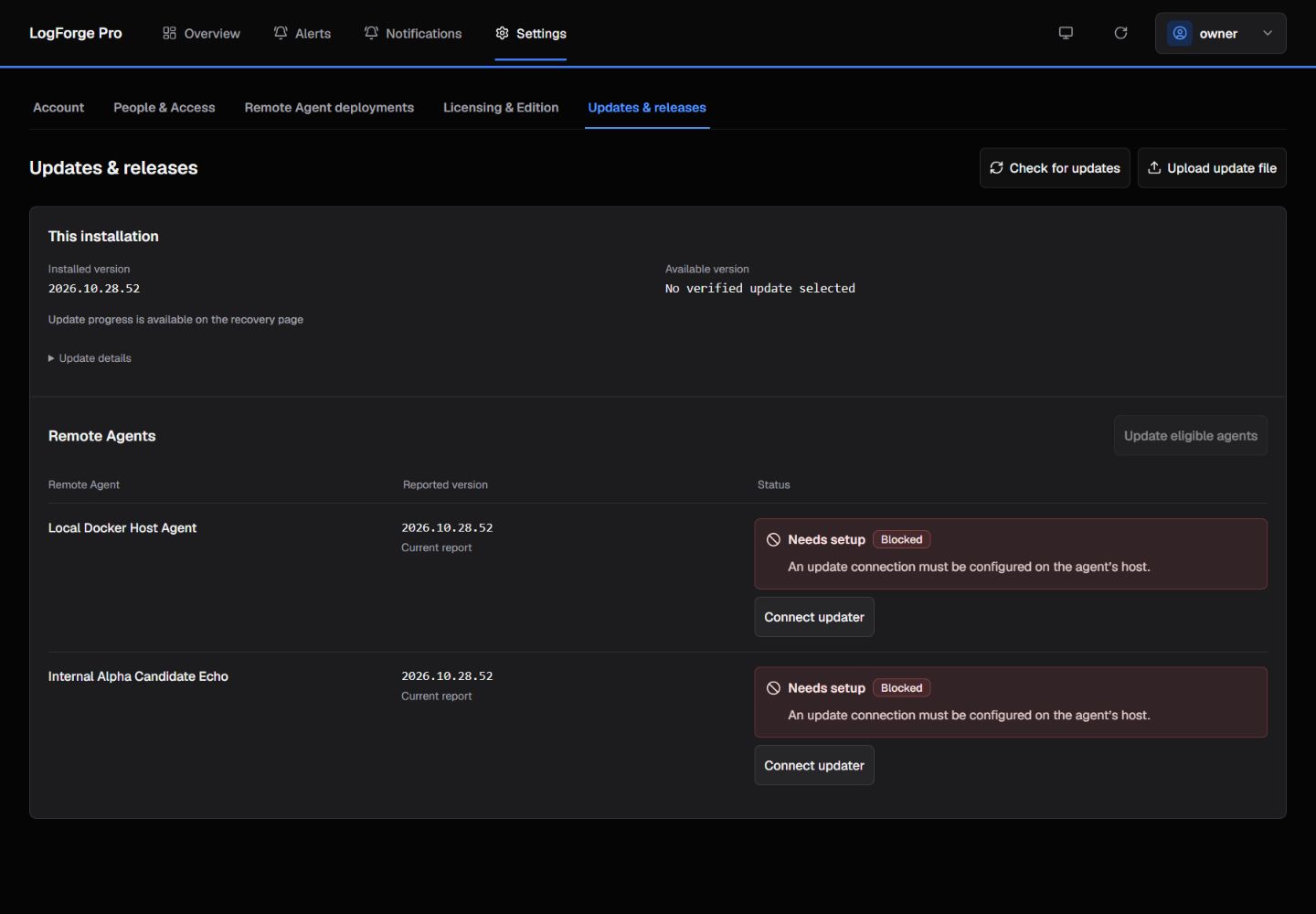
Example from version 2026.10.28.52 before connecting agent updaters. Your agent names and installed versions will differ.
Check or upload the next release
- Open Settings > Updates & releases.
- Choose Check for updates for the configured connected release channel, or Upload update file and choose the unchanged, complete signed offline tar.
- Wait for signature, CPU and release verification. Checking or uploading does not start installation.
- Review the current server, candidate, agent versions and readiness reasons. Resolve blockers first.
Check: an approved next release is available and Update this installation is offered. Do not infer compatibility from version numbers or choose images with docker compose pull.
Update the server, then agents
- Choose Update this installation, read the interruption notice, then Update now.
- Watch the recorded operation at the same HTTPS address. Closing the browser does not cancel it.
- When it completes, choose
Return to Central(the button returning to LogForge) and confirm the installed version. - Choose Update eligible agents, or Update agent on one eligible row.
- Require Updated and a current matching report for each intended agent. Check identity, health and saved logs/metrics afterward.
An offline agent is not an update success. Restore that same agent's connectivity and finish it before attempting another server release, or retire an obsolete agent through normal lifecycle controls.
Earlier native service migration
This administrator fallback is for a release whose qualified migration
instructions explicitly require replacing the existing native updater. It is
not a reason to select an arbitrary newer Docker tag. Preserve the unchanged
source package and use the exact signed successor supplied for that release.
An installed binary without --executor-package cannot perform this step.
In an administrator Bash session on the server, set the real absolute paths:
DATA=/absolute/path/to/existing-data
BASE=/absolute/path/to/unchanged-original-package
TARGET=/absolute/path/to/verified-successor-package
TRUST=/absolute/path/to/independent-vendor-public.jwks.json

"$TARGET/unicron-update" --data-root "$DATA" --installed-package "$BASE" \
  --trust "$TRUST" plan --package "$TARGET"
"$TARGET/unicron-update" --data-root "$DATA" --installed-package "$BASE" \
  --trust "$TRUST" apply --package "$TARGET"
"$TARGET/unicron-update" --data-root "$DATA" status
Check: the exact target completes and verifies health, deployment identity and the existing database Owner. If interrupted, repeat the same apply command; do not replace the recovery point or select another target.
Only after that completed result, refresh the native executable:
"$TARGET/unicron-update" --data-root "$DATA" --installed-package "$BASE" \
  --trust "$TRUST" setup-web --executor-package "$TARGET"
Check: setup reports configured using systemd. It verifies the completed operation and exact signed target, retaining the original baseline, settings, credentials, service environment and journal. Repeat this same command after an interrupted executable transition. An unfinished/restored operation, foreign unit or detached supervisor is refused and preserved. Do not edit a service unit or journal. Return to the update screen, verify sign-in and saved telemetry, then finish the existing agents through their normal update controls.
Existing release 56: use the 61 bridge first
For an existing native AMD64 Docker installation reporting 2026.10.31.56, use published 2026.11.02.61 as the intermediate updater migration before the qualified successor. Keep the original data, source package and independent trust. Complete the manual server preparation if this installation has not yet downloaded its complete signed source inventory. Other starting releases need their own approved migration path.
From the original clone in an administrator Bash session, obtain the unchanged 61 payload in a new directory. This copies files without starting the capsule:
TARGET="$PWD/bridge-61"
(
  set -e
  mkdir "$TARGET"
  PACKAGE_IMAGE=docker.io/junaidquraishi/unicron-business:release-2026.11.02.61-amd64
  docker pull --platform linux/amd64 "$PACKAGE_IMAGE"
  EXPORTER="$(docker create --entrypoint /not-executed "$PACKAGE_IMAGE")"
  docker cp "$EXPORTER:/unicron-release/." "$TARGET/"
  docker rm "$EXPORTER"
)
Check: every command succeeds. Use this TARGET with the unchanged DATA,
BASE and TRUST in the native migration procedure.
The plan/apply commands verify the full signed target before changing runtime.
After its completed result, refresh the native executable. In Settings >
Updates & releases, upload the complete unchanged signed61 offline archive to
select the same61 target for the existing agents; a previous selected package
can remain visible after an administrator CLI migration. Require the server to
show installed61 and the selected package61 before choosing Update eligible
agents. Do not start another server update. Finish each existing agent through
these normal controls, preserving each connection and identity; an unfinished
agent is not success.
Do not enable host access on 61: its generated command omits the primary CPU. After the server and every agent report 61, continue one release at a time:
| Installed release | Next signed release |
|---|---|
2026.11.02.61 | 2026.11.02.62 |
2026.11.02.62 | 2026.11.03.63 |
2026.11.03.63 | 2026.11.03.64 |
Obtain the complete, unchanged signed Linux AMD64 archives for these steps from LogForge before beginning. For each row, use Upload update file, update the server, then update every agent. Require matching versions and current reports before uploading the next archive. Do not skip 62 or 63.
The connected channel for 64 announces its immediate 63 → 64 step; it does not discover the older bridge files. After completing the sequence, follow host setup. New installations use the public installer's qualified stable release directly and do not need this bridge.
Offline update delivery
The complete archive supplies the server's image bytes. It does not automatically install images on separate agent hosts.
For a qualified disconnected agent update, the native agent updater can be configured once with --internal-registry and an already prepared internal image repository. Registry trust, authentication and connectivity must exist first. Obtain the release-specific setup and verification procedure from LogForge; uploading a server archive alone does not establish remote delivery. This is separate from first agent installation.
Kubernetes updates and real ARM-host qualification require their own release approval; these Docker instructions do not establish them.
Resume or restore
Reopen the recorded recovery page. Open update recovery returns to it from the settings screen. Choose Resume update when offered; restarting a helper only exposes saved state.
To restore the server, choose Restore previous version on that page and review the data-loss confirmation.
Database changes will be lost: restore replaces PostgreSQL with the saved checkpoint. It does not rewind retained telemetry, queues or certificates. Verify Owner access, the previous version and saved queries afterward.
Use Open update recovery > Resume update to retry that recorded target with its original recovery point. For an interrupted agent, use Resume update in its row. Agent Restore previous version is offered only for an approved compatible pair and preserves its identity and queued state.
When deployment recovery is required
Problem: the page shows Needs attention, or the host/helper is unavailable.
Why it matters: unfinished work and an unreachable host need different recovery steps.
Next step: recover host connectivity first, preserve the installation, checkpoint and operation, and follow the displayed reason. Obtain release-specific administrator help if browser recovery is unavailable. Do not delete journals, reset data, register replacement agents, or try another target to bypass the failure.